
In 2026, Windows 11 is more than just an operating system; it’s a portal to Microsoft’s ecosystem. However, that portal comes with baggage. From integrated AI like Copilot+ and Recall to a mountain of telemetry and “suggested” apps (that no one ever asked for), Windows 11 can feel heavy. If you’ve ever noticed your RAM usage sitting at 6GB just after a fresh boot or felt your CPU fans spin up for no reason, you’re experiencing “bloat.”
Debloating isn’t just for power users or gamers looking for an extra frame per second—it’s for anyone who wants a cleaner, faster, and more private computing experience. In this guide, we’ll dive deep into why you should debloat, the free tools that make it easy, and exactly how to strip Windows down to its fighting weight without breaking its core functionality.
Why You Should Debloat Windows 11
Before we touch a single line of code, let’s talk about the “why.” Microsoft designs Windows to be a general-purpose tool for everyone from grandmothers to enterprise CEOs. To do this, they include hundreds of background services and apps “just in case.”
- Performance Gains: Every pre-installed app and background service consumes resources. By removing them, you free up RAM and reduce CPU overhead. On older hardware or laptops, this can be the difference between a laggy experience and a snappy one.
- Privacy and Security: Windows 11 is notorious for “telemetry”—the constant stream of data being sent back to Microsoft about how you use your PC. Debloating disables these trackers. Furthermore, “shrinking the attack surface” by removing unused apps like OneDrive or Cortana means fewer vulnerabilities for hackers to exploit.
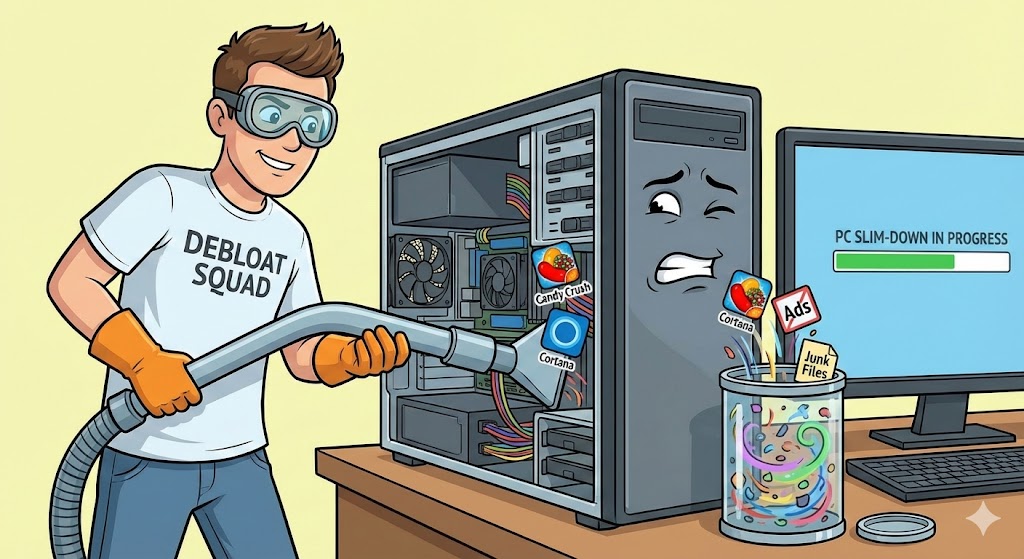
- Aesthetics and Focus: A debloated Windows is a quiet Windows. No more “news and interests” distracting you on the taskbar, no more Bing search results when you’re just trying to find a local file, and no more ads for Candy Crush in your Start Menu.
The Performance Reality Check
Let’s be honest: if you’re running a liquid-cooled beast with 64GB of RAM and a top-tier GPU, debloating might only give you a 1% boost in gaming FPS. However, you will notice a massive difference in system responsiveness. Applications will open faster, and your PC will feel “lighter.” For users on laptops or mid-range builds, the gains are much more significant—sometimes cutting boot times by 30% and reducing idle RAM usage by half.
Top Free Tools to Debloat Windows 11 in 2026
You don’t need to be a programmer to do this. Several incredible open-source tools have been refined over years of community testing.
1. Chris Titus Tech Windows Utility (The All-In-One)
This is arguably the most famous and reliable tool in the community. It’s a PowerShell-based utility that provides a GUI (Graphical User Interface) for installing software, applying system tweaks, and removing bloat. It’s updated almost weekly to keep up with the latest Windows updates.
2. O&O ShutUp10++ (Privacy Focus)
Don’t let the name fool you; it works perfectly on Windows 11. This tool is strictly about privacy. It gives you a simple checklist of every telemetry and tracking setting in Windows, color-coded by how safe they are to disable.
3. Win11Debloat (The Lightweight Script)
If you want something simple and fast, this PowerShell script is a masterpiece of efficiency. It removes pre-installed apps, disables telemetry, and restores the classic context menus (the right-click menu we all actually like) in one go.
4. Bloatynosy / Winpilot
For those who want a modern interface, these tools allow you to “search and destroy” bloat. They include a feature called “Fresh11” which acts like an assistant to help you clean up a brand-new installation.
Step-by-Step: How to Debloat Completely
Step 0: The Golden Rule (Backup!)
Never tweak your OS without a safety net. Before you start, create a System Restore Point.
- Search for “Create a restore point” in your Start Menu.
- Click Create, name it “Before Debloat,” and hit enter.
Step 1: Manual Cleaning
Before using automated tools, go to Settings > Apps > Installed Apps. Uninstall the obvious stuff: Spotify, TikTok, Instagram, and any trialware that came with your PC. This clears the easy clutter.
Step 2: Running the Chris Titus Utility
This is the “magic” step.
- Right-click your Start button and select Terminal (Admin).
- Type or paste the following command and hit Enter:
irm "https://christitus.com/win" | iex - A window will pop up. Navigate to the Tweaks tab.
- Select Desktop (it automatically checks the safest, most effective debloat options).
- Click Run Tweaks. This will disable telemetry, stop the “News and Interests” widget, remove Edge bloat, and even set your Windows Update to “Security Only” so Microsoft doesn’t force-install unwanted features later.
Step 3: Privacy Hardening with O&O ShutUp10++
Once the Titus utility is done, download O&O ShutUp10++.
- Open the program.
- Go to the Actions menu and select Apply all recommended settings.
- This will flip all the “green” switches, effectively silencing Windows’ data collection.
What to Expect After Debloating
Once you reboot, you’ll notice a few things immediately. The Start Menu will be empty and clean. The taskbar will be less cluttered. If you open your Task Manager (Ctrl + Shift + Esc), look at the “Processes” count. A standard Windows 11 install often has 150+ processes running at idle; a properly debloated one can drop that to 80 or 90.
A Warning for the Enthusiast: Windows Updates are aggressive. Occasionally, a major “Feature Update” (like the yearly 24H2 or 25H2 updates) will try to reinstall things like OneDrive or re-enable telemetry. It’s good practice to run your debloat tools once every six months just to “sweep up” any new junk Microsoft has dropped into your system.
Make it Work for YOU!
Windows 11 is a powerful operating system, but it’s cluttered with corporate interests. By taking 20 minutes to debloat your system, you aren’t just making your computer faster—you’re taking back control of your own hardware. Your PC should work for you, not for Microsoft’s advertisers.